|
GRANTS MANAGEMENT SYSTEMS
GMS E-NEWS
Fall 2026
|
|
Welcome, Fall!
Looking Ahead with GMS
There’s something energizing about a change of seasons. Fall is a reminder that growth and new opportunities often come with change, and at GMS we’re stepping into an exciting new season of our own.
Throughout 2026, our team has been hard at work modernizing both GMS Accounting and RLSS Loan Servicing as next-generation web applications. These new solutions keep the powerful functionality you rely on every day and add easier access, a better user experience, and the flexibility to grow with your organization.
We’re proud of our long history of serving grant and contract accounting organizations, and we’re even more excited about what’s ahead. Thank you for your continued trust. We look forward to serving you for many years to come.
A first look at what’s next
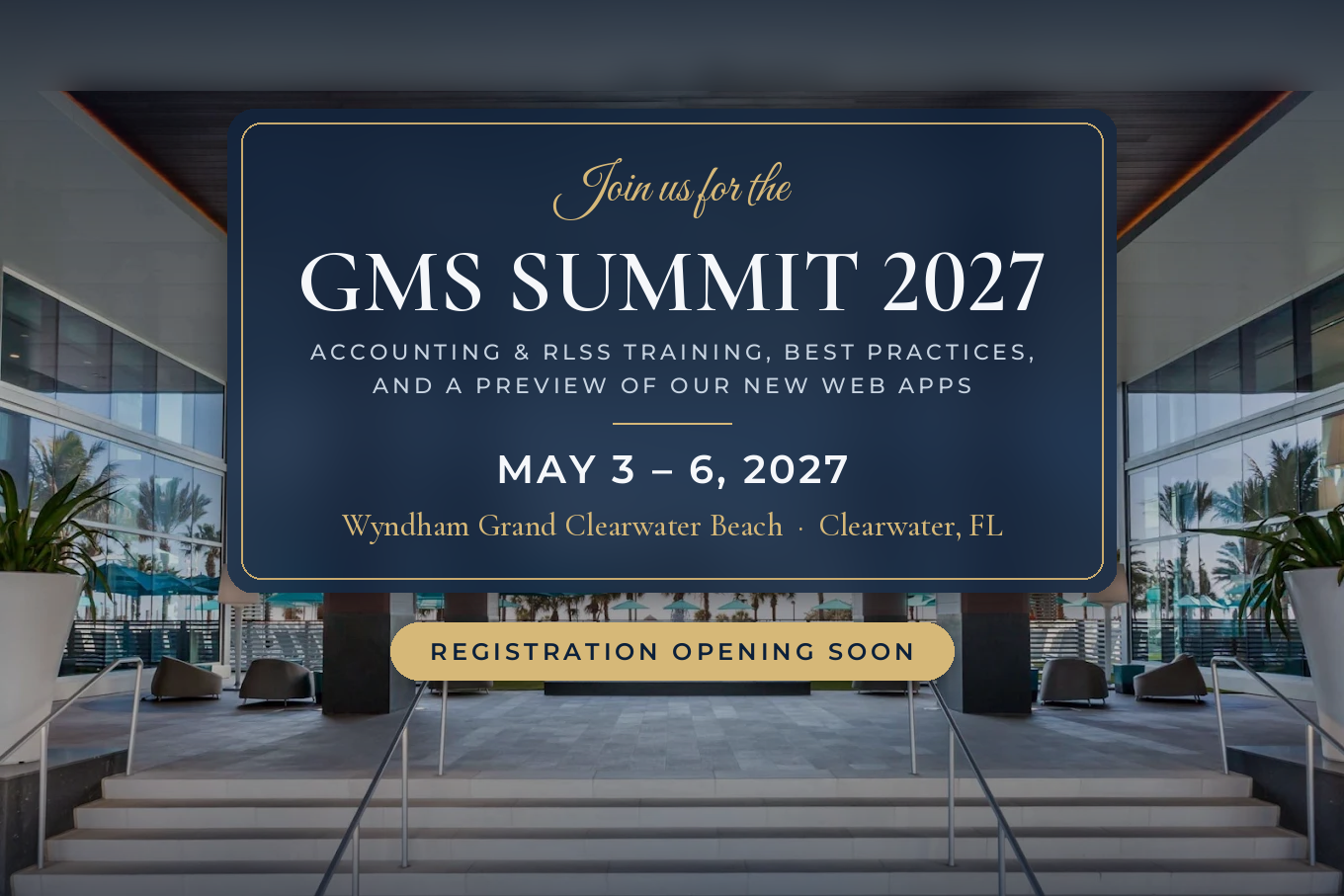
At GMS Summit 2027, we’ll introduce the Next Generation of GMS Solutions, built to help your organization work faster and smarter. It’s one of the most exciting projects we’ve ever taken on, and we can’t wait to show you. Watch for more details in upcoming issues.
We’re always here for you
Have questions about your account, your software, or what’s coming next? Our team is just an email or phone call away.
|
Time to Order Tax Forms
Year-end comes fast. Get your forms in hand before the rush.
It’s hard to believe, but the W-2 and 1099 season is only a few months away. Ordering your tax forms from GMS now means you’ll have them well before the January deadlines, and plenty of time to fix any issues.
Place your order early.
👉 Order your tax forms here
Whether you print your own W-2s, 1099s, 1098s, or 1095s, or you have GMS print them or prepare your electronic files, now is the time to plan. Forms will ship by the third week of December to clients whose accounts are current.
One reminder: we can’t fill orders for accounts with an outstanding balance for charges before November 2026. If you’re not sure where your account stands, contact us, and we’ll help you sort it out.
Check your order twice.
A few minutes now can save a scramble in January:
- When you get your confirmation email, make sure the form types and quantities match what you need.
- When your box arrives, open it right away and count what’s inside.
If something’s off, email service@gmsactg.com and include your client number so we can fix it fast.
Filing electronically? This year is different.
The IRS is replacing its FIRE filing system with IRIS. FIRE closes November 19, 2026, and your old FIRE TCC won’t carry over. To e-file 1099s and 1098s in January, you’ll need a new IRIS TCC. Approval can take up to 45 business days, so apply now.
Where each form goes
| Form |
Where to file |
Learn more |
| 1099s, 1098s |
IRS IRIS |
IRS IRIS |
| W-2s |
Social Security Administration |
SSA.gov/employer · 800-772-6270 |
| 1094/1095 (ACA) |
IRS AIR (separate ACA TCC required) |
IRS AIR |
|
IRS Is Retiring FIRE: Register for IRIS Now
The IRS is shutting down its FIRE system for filing 1099s and other information returns. FIRE closes November 19, 2026, at 3:00 p.m. ET. Starting January 1, 2027, all electronic information returns must be filed through the new IRIS system.
Your FIRE credentials won’t carry over. You must register for IRIS separately.
Why act now? The IRS says an IRIS application can take up to 45 business days to process, which is about nine weeks. If you apply today, approval may not arrive until late November. If you wait, you risk missing January filing deadlines and facing IRS penalties.
What to do:
- Set up ID.me. Your Responsible Official(s) and contacts must verify their identity through an IRS online account using ID.me.
- Apply for an IRIS TCC. Submit a new IRIS Transmitter Control Code application through the IRS e-Services portal (https://www.irs.gov/e-services).
- Use your GMS file. GMS already creates IRIS-ready CSV files. Once you’re approved, upload your file directly to IRIS.
Your GMS files are ready for IRIS. The only thing left is your registration, so start this week.
|
Why Every Organization Using an Access Database Should Compact and Repair
Over time Access databases can become larger, slower, and more susceptible to data corruption. One of the simplest yet most important maintenance tasks is regularly running the Compact and Repair Database utility.
Why Compact and Repair?
As records are added, edited, and deleted, unused space builds up inside the database. The Compact and Repair utility:
- Improves database speed and responsiveness
- Reduces file size by reclaiming unused space
- Helps fix minor database corruption issues
- Improves overall stability and reliability
- Extends the life of your database
How Often Should You Compact and Repair?
| Heavy daily use: |
Daily |
| Moderate use: |
Weekly |
| Light use: |
Monthly |
| After large imports, mass deletions, or unexpected crashes: |
Immediately. |
A Simple Best Practice
Before compacting, always ensure a current backup exists and that all users have exited the database. A few minutes of maintenance can save hours of troubleshooting later.
Bottom Line: Regular Compact and Repair maintenance keeps your Access database faster, leaner, and more reliable, making it one of the easiest ways to protect your organization’s valuable data.
Using the GMS Compact & Repair Utility
To make this process easier, GMS developers created Backup Database application located in the GMSACTG.Net folder. This Database Backup Utility helps users quickly back up their Access database and perform a Compact and Repair operation with just a few clicks.
- Make sure all users have exited the GMS Software.
No one should be logged into the database during the Compact & Repair process.
- Open the C:\GMSACTG.Net folder on your workstation and locate the Backup Database application.
 Note: If you wish to access this file from your desktop, right click on the Backup Database application, Send to Desktop. Note: If you wish to access this file from your desktop, right click on the Backup Database application, Send to Desktop.
- Double-click the Compact & Repair icon to launch the utility.
- Click the Browse (…) button and locate your current database file.
In most cases, the database file is on the server in the \GMSNET folder, and the database name is ConversionNet.mdb.
Note: If your agency is not networked, the database would typically be located in C:\GMSNET folder.
- Select the database file and click Compact & Repair.
- Wait for the process to be completed. A confirmation message will appear when the Compact & Repair operation has finished successfully.
- After compacting the database, click Backup Database.
- The utility will create a backup copy of the database and save it to the location displayed on the screen.
|
Protect Your Data with Regular Backups
Your GMS database contains critical financial and operational information. Whether you use Microsoft Access or SQL Server, regular backups are essential to protect against hardware failures, cyber threats, accidental deletions, and data corruption.
Work with your IT team to confirm that your database is included in your organization’s backup process and that all backup procedures are being followed consistently. If your organization has a backup policy, review it periodically to ensure it remains effective.
A reliable backup today can save hours of recovery time tomorrow and help ensure your data is there when you need it most.
|
Audit Entries
Once you have received your completed audit, there are a few important steps to follow:
- Obtain your audited trial balance.
- Compare the audited trial balance to your internal trial balance.
- If the balances do not match, make sure you receive the audit adjustments.
Entering Audit Adjustments
If audit adjustments are required, ensure that you enter the general journal entries in the correct fiscal year (the year being audited).
- If you are not currently in that fiscal year, you must reverse roll to the appropriate fiscal year before posting the general journal entries.
- Review the entries to determine whether any adjustments affect your cost pool.
- If the cost pool is affected, you must recalculate, redo, and repost your year-end closing entries.
Final Review Process
After posting the adjustments:
- Post all allocations.
- Post all financial statements.
- Review your balance sheet and trial balance.
- Compare both reports again to verify accuracy.
- Re-run all year-end reports to ensure you have the most current and updated versions.
Before Rolling Forward
If your system uses a drop-down database, update it before rolling forward to keep all information current and accurate.
Need Assistance?
If you are having trouble with reverse rolling or updating the database, training assistance is available through GMS. Book an appointment. Contact service@gmsactg.com for support.
|
GMS Support Services and Virtual Training: Current Policies
Our support team keeps GMS running smoothly for you. To help you get the right help quickly, here’s a refresher on what your software support includes, what it doesn’t, and our policy for rescheduling virtual training.
How we can help
When you contact GMS Support, you’re working with people who know both the software and the accounting behind it. We can:
- Fix software issues and errors, so your work isn’t interrupted.
- Find the source of a problem and get it resolved efficiently.
- Walk you through accounting procedures and help with financial reporting questions.
- Suggest ways to work smarter, with recommendations tailored to how your organization uses GMS.
- Share best practices to help you get more out of the software.
Some services are not included in your GMS Software and Support agreement. The following are excluded:
| Request |
Who can help |
| Bank and GL account reconciliations |
GMS, as a separate service billed at our current rate |
| Network setup, configuration, or troubleshooting |
Your internal IT team or an outside IT provider |
| Hardware and system infrastructure |
Your internal IT team or an outside IT provider |
GMS is a software and accounting partner, not an IT service provider. If you’re not sure which kind of issue you’re dealing with, reach out, and we’ll point you in the right direction.
Need to reschedule training? Give us 24 hours’ notice.
Virtual training sessions are popular, and time slots fill quickly. If you can’t make your scheduled session, please let us know at least 24 hours in advance.
Cancellations with less than 24 hours’ notice will be charged a $65 late cancellation fee. Notice lets us offer your time slot to another client who’s waiting and respects our trainers’ time.
|
Save 5% with Prepaid Annual License and Support Fees
Prepay a full year of your monthly user license or monthly software support fees and save 5%. If your fiscal year is starting soon, now is a great time to lock in the discount — contact Sara Drury at 800.933.3501, ext. 3, to learn more or to request an annual invoice.
Please note payment must be received by the last day of the month in which the invoice is issued to qualify for the discount. Payments received after that date will be billed at the standard monthly rate, and the 5% discount will no longer apply.
|
Has Your Staff Changed Recently?
Turnover happens — new hires, promotions, departures. If your team has changed, we want to help you keep us in the loop. Just reach out to us at the link below, and we’ll send you an editable list of your current Active Contacts so you can review it and send back any updates in just a few minutes.
👉 Update Your Contacts
|
Fall Webinars: Finish the Year Strong
Year-end doesn’t have to be stressful. Join GMS this fall for two practical webinars that walk you through your most important year-end tasks, step by step.
📅 Wednesday, October 21, 2026
Prepare Year-End Financial Statements with Ease
Learn to efficiently complete your auditor-ready year-end statements using GMS FASB 117 or GASB 34 worksheets.
📅 Wednesday, December 2, 2026
Year-End Processing Made Simple: W-2s & 1099s
A complete walkthrough of W-2 and 1099 preparation using GMS tools.
|
Free Tutorial: Creating 1098s in RLSS
Tax season prep just got easier. Starting November 1st, we’re releasing a free tutorial for clients with the 1098 supplement, walking through the full process of generating 1098 forms in RLSS. The video covers how to create your 1098s, check for and correct errors before finalizing, and generate the electronic file for uploading directly to the IRS website. Whether you’re new to the process or just want a refresher, this quick, self-paced tutorial will help you get it right the first time. Keep an eye out for the link on November 1st!
|
🗓️ GMS Holiday Closures — Q4
- November 11 — Veterans Day
- November 26 & 27 — Thanksgiving
- December 24 & 25 — Christmas
|
|

Grants Management Systems
service@gmsactg.com | 800.933.3501 | www.gmsactg.com
|
|